Showing posts with label IPHONE TRICKS. Show all posts

Monday, 13 May 2013

How To Move Your Music Files From An iPod To A PC


If you’ve ever gotten the black, blue, red or any other color “screen of death” on your iPod, you know the frustration that follows. Those John Tesh Acoustical Jams weren’t easy to find and now they’re trapped in limbo with virtually no way to access them. You can try and take the deactivated Pod to an Apple technician but that could be costly and there’s no certainties they can fix the problem or at least save your music.
If you have the songs saved on your computer, you have options. Unfortunately, many music collections have been acquired over time and from many different locations. This advice will help you convert your music from your iPod to your PC so that John Tesh can withstand an unfortunate iPod crash.

Move Your Music Files From An iPod To A PC

The first thing you’ll need to do to transfer music from your iPod to your PC is to show all your hidden files.
Now that you can view all the files on your computer, plug in your iPod using the USB port. In windows explorer, click on the folder of the drive that is corresponding to your iPod. In this folder, you should see another folder titled “ipod_controls.” In the ipod_controls folder you’ll find files of music. The names will be scrambled something to the like of __Tesh__.. Drag all these files to a folder on your hard drive and they’ll be saved on your PC.
Just having the files on your hard drive isn’t enough, you’ll need to drag them into iTunes in order to put them on an iPod.
1. Open iTunes and go to the edit menu and choose preferences from the menu.
itunes edit menu
2. Click on the Advanced icon. See the screenshot below.
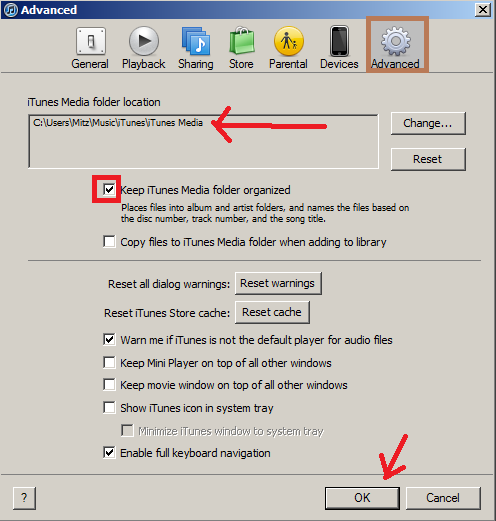
4. In the dialog box, select the folder on your hard drive where you dragged the music files. You can do this by clicking on the change button.
There’s also a box asking to “keep iTunes music organized” and you should make sure that this is checked.
5. Now in iTunes go to File>Add Folder To Library and select the folder on your hard drive where you transferred the music.
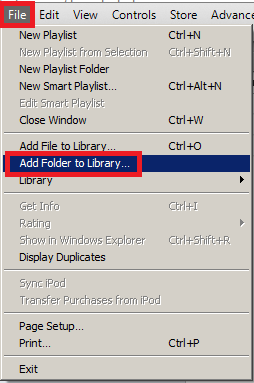
6. The music will then be transferred to this iPod and the names will conveniently be restored with song titles, album covers, artist name, etc.
Transferring music from your iPod to your PC is a great way to ensure your music library is never compromised. You can transfer your entire collection to multiple iPods without having to sync them up to different computers. Of course this will take up memory on your PC so it might be a wise idea to purchase a removable flash drive or an external hard drive so that you can free up space as well as take your library on the go. At the very least, transferring your music from the iPod to the PC provides a safe back-up plan to ensure you’re never without Tesh.

Tuesday, 7 May 2013

How to Record Screen Activities On IOS Devices With Reflector


Do you know there is a way to record your iPhone or iPad screen activities? Recording screen activities is not really widely used but, in some cases like making a tutorial or an app review, recording beats taking screenshots. But you don’t have to record your screen activities with a camera; just use Reflector.
reflector intro image
Reflector is a desktop application which allows you to mirror your iOS screen to your computer so that you can record and save the recording on your computer. It also records sound. Now isn't that a handy app to have?

Record IOS Devices Activities With Reflector

First, download and install Reflector on your computer. Run it. Make sure that your computer and iPhone/iPad is on the same Internet connection or Wi-Fi.
After running Reflector, click on Try Reflector and the program will run on trial mode. Trial mode allows you to use Reflector for free for 10 minutes.
reflector trial mode
You can find the Reflector icon on the notification part of the taskbar.

reflector at taskbar
Right click on Reflector icon and open up its ‘Preferences’. You can set Reflector to optimize for the iOS devices you own.
reflector show preferences
Now on your iPhone, press the Home button twice to bring up the recently used apps bar. Then, swipe it to the right until you see the Airplay icon.
search for airplay on iphone
Tap on the Airplay icon, and connect to your computer. Turn on Mirroring.
tap on airplay and select computer
Now, on your computer screen, you’ll see your iPhone mirror image. You can change the color of the iPhone frame on the desktop by Right click > Frame Skin.
change frame skin color
And, you can also change the mirrored iPhone/iPad scale size by Right click > Scale: Actual Size.Choose the size you want it to display.
change scale size
To start recording, you can do so by pressing Alt + R or right click and click ‘Start Recording’.
start recording
When you start recording, there will be a timer on top of the iPhone on your desktop screen to show the duration of your recording.
during recording
To stop recording, press Alt + R and a pop up will ask you where you want to save your recording. The recording will be in MP4 format.
save recording
Double click on your recording file and you can view your recorded iPhone/iPad screen activities.
play recording
It also works in landscape mode. During recording, if you change from portrait to landscape mode, the change will be reflected in the recording.
landscape mode

Monday, 6 May 2013

10 Brain Teaser (Sudoku Alternatives) Apps For IPhones


Playing games is one of the ways to relax, to hone reaction time, critical thinking, improve our creativity and of course, to have fun. Brain teasers test us with a series of questions and puzzles to check where our problem-solving skills lie. Sometimes you need to think out of the box to find the right answers.
We have here 10 free brain teasers you can play on your iPhone. Swap texting, social networking or mindless repeatable games for these mind-sharpening puzzles instead. It will make that wait or queue a lot bearable and now, you get one (or maybe ten) more options to better spend your time with.

1. Clockwork Brain

In Clockwork Brain, players will be tested through a mini series of games with time limits. It’s a great app to have for those Sudoku lovers who want to play with more than just numbers.
You’ll need some memory work, logical reasoning, a good eye and a love for puzzles. There is a good range of games in this free version but if you want more, go premium for $2.99.
clockwork board

2. Move The Box

Move The Box is a puzzle game where you need to move the boxes into groups of three, either horizontally or vertically. The catch is, there is a limited number of moves. Game play allows for swapping, moving and dropping of the box and if you have made a wrong move, just click the undo button.
There are over 600 levels for you to beat and hints are actually available for purchase.
move the box

3. What’s My IQ

What’s My IQ is a game that will ask a series of questions which may seem straightforward or silly at first but most actually have pretty creative answers. The graphics are family-friendly and parents and kids will probably have a blast trying to outsmart each other (we adults do have a tendency to over think things).
what's my iq

4. Stupidness 2

Stupidness 2 is a puzzle game that will make you think out of the box. Some of the solutions or answers to the puzzles are funny and unique, like this one you see below. The progress bar near the top will deplete the longer you take to get the question right. The bar reflects your IQ level as seen on the left. And if things get too hard, just use a hint (points will be deducted).
stupidness 2

5. The Room Pocket

The Room Pocket is a first-person POV quiz/puzzle adventure game where you’re presented with series of boxes you need to crack open to move on to the next level. It is a mystery puzzle game and you will be swiping around, tapping, zooming in and out and clicking on items to solve the puzzle.
If you’re stuck on certain levels, there is this tool called ‘eyeglass’ that you can use to help you reveal the way to the next level.
the room pocket

6. 77 Logic Games

77 logic games deals with boxes and putting the right things in the right box. Play by the rules and trump the puzzle to get to the next stage. There are hints in the game if you get stuck or you can just restart the game. With 77 different types of puzzles you have more than 2000 levels to keep you occupied.
77 logic games

7. 100 Doors 2013

You’ll either love it or hate it. That’s 100 Doors for you. This one is the 2013 version and the idea of the game is to figure out how to open the door based on clues you see around the door. In some levels, you have to even tilt or turn your smartphone upside down. Open a door, and advance to the next level. Living up to its name, there are 100 doors for you to unlock, so start guessing!
100 doors 2013

8. Knowledge Trainer

Knowledge trainer is like your personal Jeopardy show. It challenges you on various topics such as history, sports, science, film, arts and much more. When you answered correctly and your performance is good, the questions will get tougher. Players can view their statistics to see the category they are weaker in. Fun for the know-it-all in class.
knowledge trainer

9. 7 Little Words

7 Little Words is a puzzle word game where you’re given 7 different clues. Based on the clues you need to find the right word to describe them. If you get stuck you can use hints to help you reveal the first letter or tile of the correct answer, but the hints are limited, so you need to use it wisely.
7 little words

10. 4 Pics 1 Word

4 Pics 1 Word is a game where you are given 4 different pictures with one common theme, guess that theme in a word and you win! If you’re stuck you can always ask for help from your friends over in Facebook or you could use the hint given at 60 points a pop.
4 pics 1 word

Thursday, 2 May 2013

How to Manage Your IPhone Data With CopyTrans Contacts


[Windows only] If you own an iPhone and work mostly on Windows, you will find limitations and restrictions to managing your iPhone data via iTunes. You will probably need another app to manage your contacts, edit your calendar and yet another to backup your text messages. Should managing your iPhone data really be such a hassle?
intro image
Well, not when you use CopyTrans Contacts, a Windows program that allows you to manage your iPhone contacts, calendar and text messages all from the same app.

Managing Contacts

To start, download and install CopyTrans Contacts. After installing, connect your iPhone to your computer via USB. Now, run CopyTrans and choose CopyTrans Contacts.
main menu choose copytrans contact
Then, click on the ‘Contact’ icon on the left sidebar to access the Contacts page.

click on contact icon
You can add a new contact by clicking the ‘+ New contact’ icon.
click on new contact
It will open a new page where you input the details of your new contact. After you’re done click ‘Apply changes’ and it will save to your phone.
click on apply changes
You can also back up your contacts using CopyTrans. To do this, just click on ‘Export contacts’.
export selected
It will open a new window which will show different types of backup options you can choose from. You can save your contacts to your computer or transfer your contacts to other devices.
click on save your address book
After choosing ‘Save your address book’, all of your contacts are now saved in your computer.
contacts succesfully saved

Managing Calendar

To manage your calendar with CopyTrans, first, connect your iPhone via USB to your computer, run CopyTrans and wait for it to finish syncing.
Now, click on the ‘Calendar’ icon on the left sidebar.
click on calendar icon
You’ll notice that all of your calendar events are displayed. To edit your calendar, just click on the selected event and you can drag it and drop it to the time slot you want.
You also can adjust the starting time and the endtime for the event by dragging the bottom line of any hour and extending it to the hour you want.
To change dates of events, navigate your calendar to ‘week view’ or ‘month view’ and simply drag the event to a different date.

Managing SMS

Apart from managing your SMS, CopyTrans also can be used to manage your MMS and iMessage.
Connect your iPhone to your computer via USB. Click on the ‘speech bubble’ icon and your messages will load.
On the text messages list, there’s a small box on the left where you can tick which message history you want to back up. Tick the ones you wish to back up and click on ‘Export selected’.
After exporting it, the backed up files will be in HTML format.
Double-click on the backed up files and it will open on your default browser where you can read your messages.

Limitations

The free version of CopyTrans only allows you to do 50 actions, so, when you’re out of actions you can’t edit anything anymore on CopyTrans. However, you can gain more ‘actions’ by helping to spread the word about CopyTrans on Twitter or Facebook.
Alternatively you can buy CopyTrans for a one-time fee of $12.99, with 1 year of free updates. Note that after this first year, you will not receive anymore updates.

Friday, 26 April 2013

How to Transferring Apps From IPhone


There is no direct way of transferring any apps from your iPhone to an Android device, you’ll have to download all of it again. Also take note that except for really popular apps, you might not be able to find an Android equivalent of the same app at the Play Store, Google’s own app store, but Android does have widgets.
An Android widget is placed on the home screen and works hand in hand with apps installed on the device. It allows quick access to things you can do on an app such as faster browsing through emails straight on the home screen, without needing to open the email app.
Google Play Store
(Image Source: Tested)
You can access the Google Play website from your desktop browser to install apps onto your device. Using the same Google Account used during the setup of your Android device, Google can detect your device and remotely install apps onto your device. Just click on Install.
Google Play Website

HOW TO Transfer Pictures & Videos From IPhone


Transferring media like music, pictures and videos onto your Android device is very simple. All you have to do is connect the Android device to your computer and you’ll be able to view all the files through the "My Computer" of your PC or Finder on your Mac.
If you want to transfer your iPhone photos to your Android device, you’ll first have to transfer it to your PC. Demoing this import from a Windows 8 PC, you can right click on your iPhone from the My Computer and click on Import pictures and videos.
Import Pictures
It’ll take a while to search for all your pictures and videos before you can select the folder you want to import to.
After that, just drag all your picture and video files in that folder into your Android device.
Import Pictures
Alternatively, you can use AirDroid to wirelessly transfer media from your phone to the computer and vice versa (if there is a need).
AirDroid

How to Transfer Contacts & SMS From IPhone


If you frequently backup your iPhone then all of your contacts should be stored on iCloud. Here’s a detailed guide on how to export your iPhone contacts to your new Android device.
Transfer iPhone Contacts
Transferred your contact? Now it’s off to transferring SMS. We also have a detailed guide to help youtransfer iPhone SMS to Android. Alternatively, you can use mobile messsaging apps like Whatsapp or Viber as an alternative to traditional SMS.
Transfer iPhone SMS